Quick Start
Get started with Paygent in less than 5 minutes. Choose your SDK and start tracking AI usage immediately.
1Get Your API Key
Sign up at withpaygent.com and get your API key from the dashboard.
2Install the SDK
Node.js
1npm install @paygent_org/paygent-sdk-nodePython
1pip install paygent-sdkGo
1go get github.com/paygent-org/paygent-sdk-go3Set up Agents and Indicators
Define your AI agents and the indicators (actions) they'll track in the Paygent dashboard. For example, create a chatbot-agent agent and a message-sent indicator.
Common Examples:
customer-support-bot → Indicator: message-sentsales-assistant → Indicator: meeting-bookedcontent-generator → Indicator: article-generatedCreating an Agent:
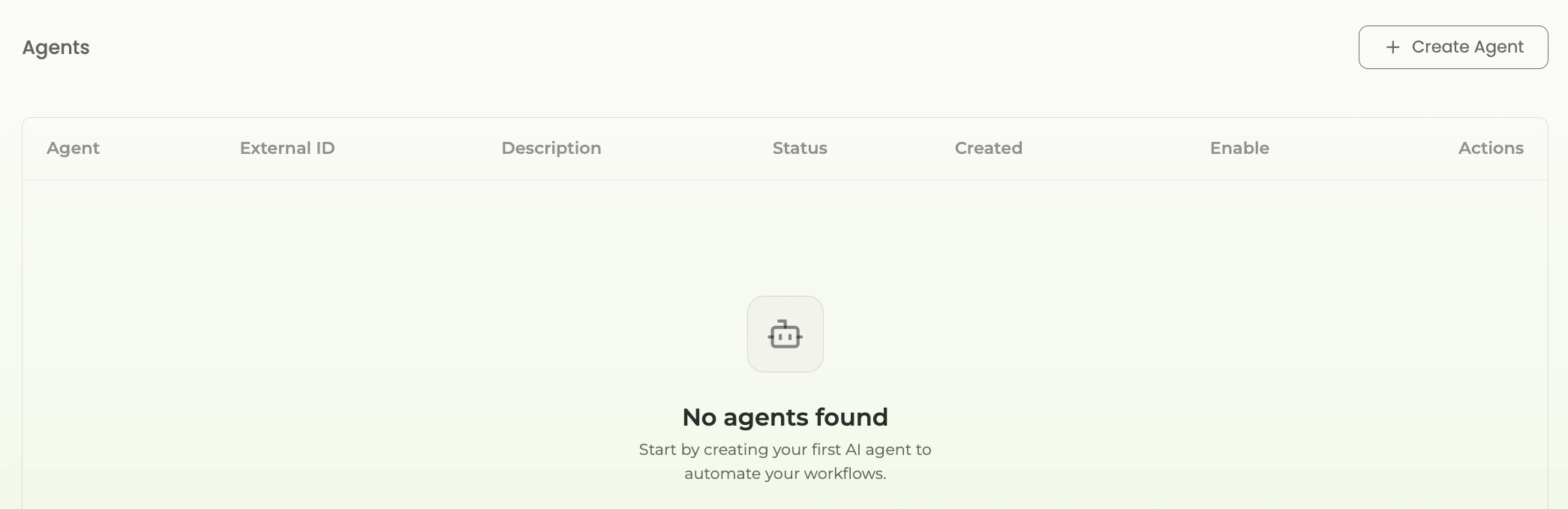
Step 1: Go to Paygent dashboard and click on "Create Agent"
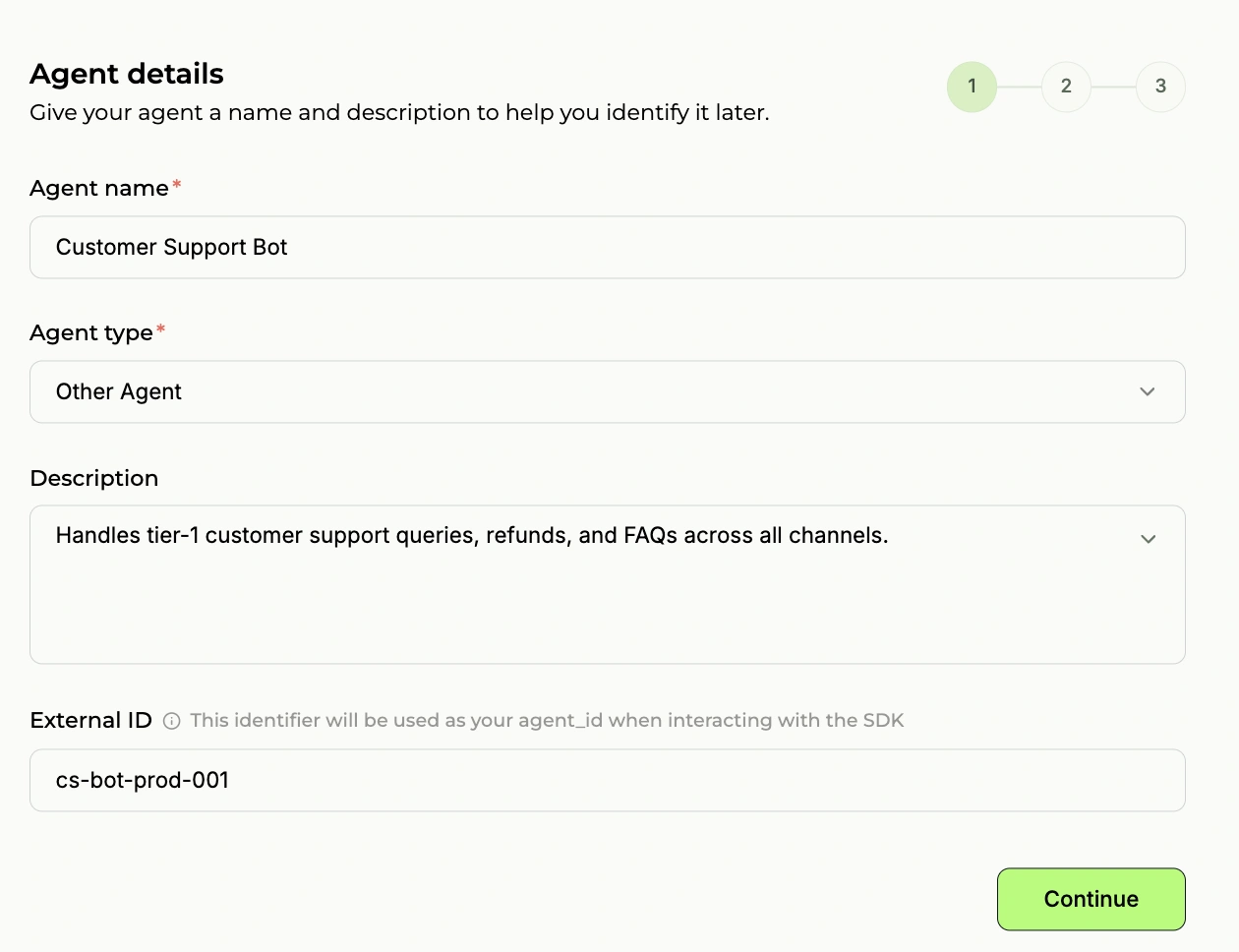
Step 2: Give agent name and external ID. External ID is important, Select other agent
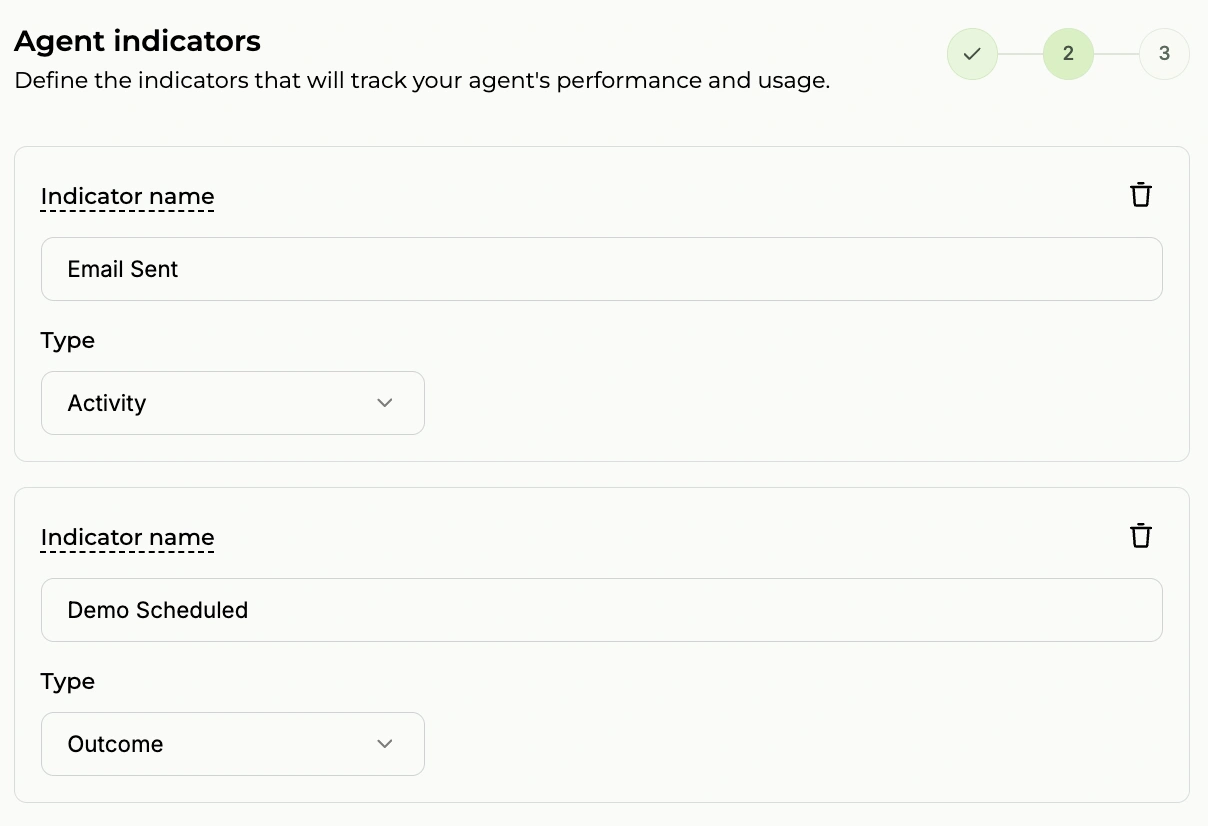
Step 3: Create indicators. Indicators can be activity-based or outcome-based
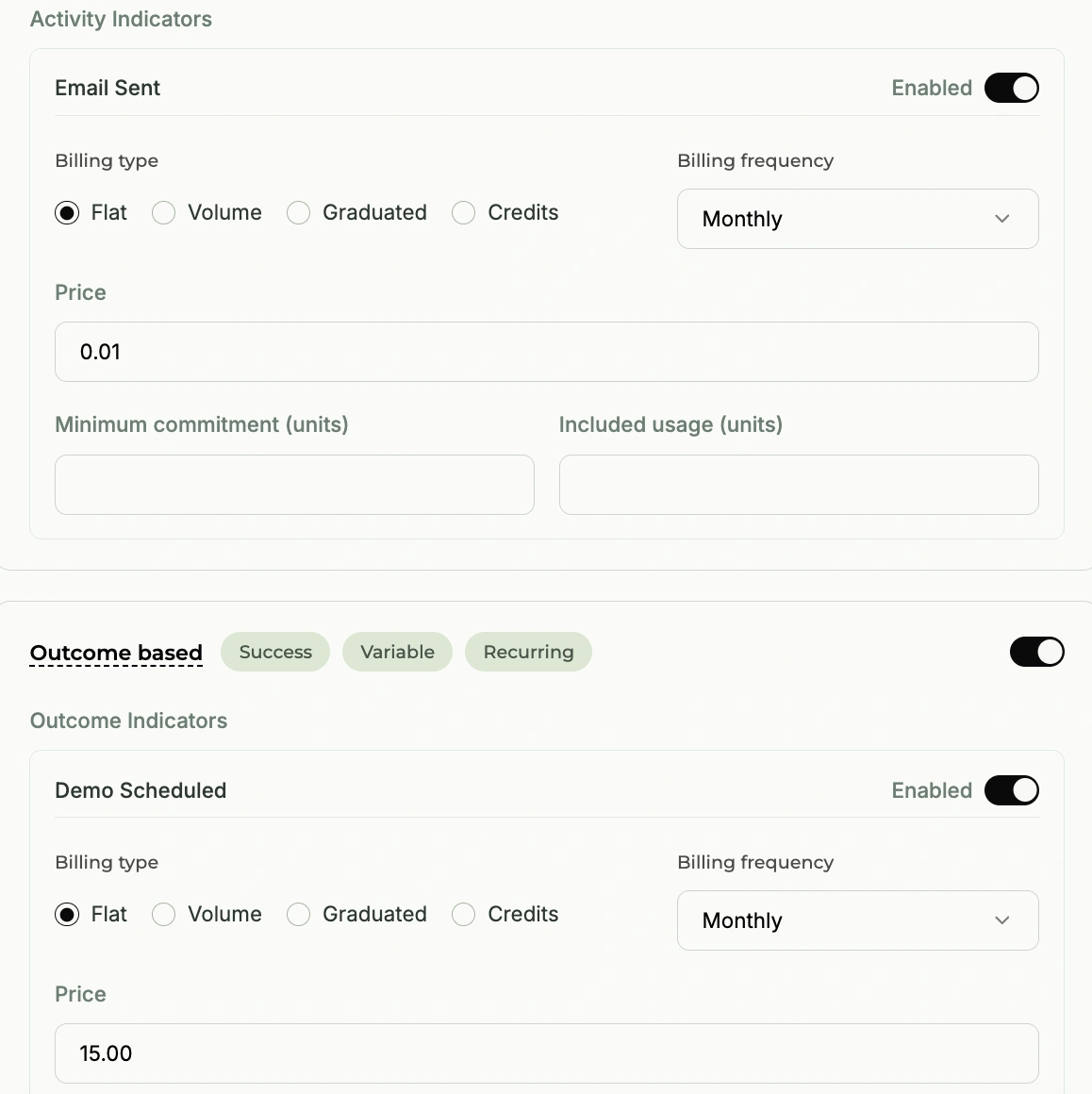
Step 4: Define your pricing. For example, in the image it's $2 per call
Step 5: Your agent is created successfully!

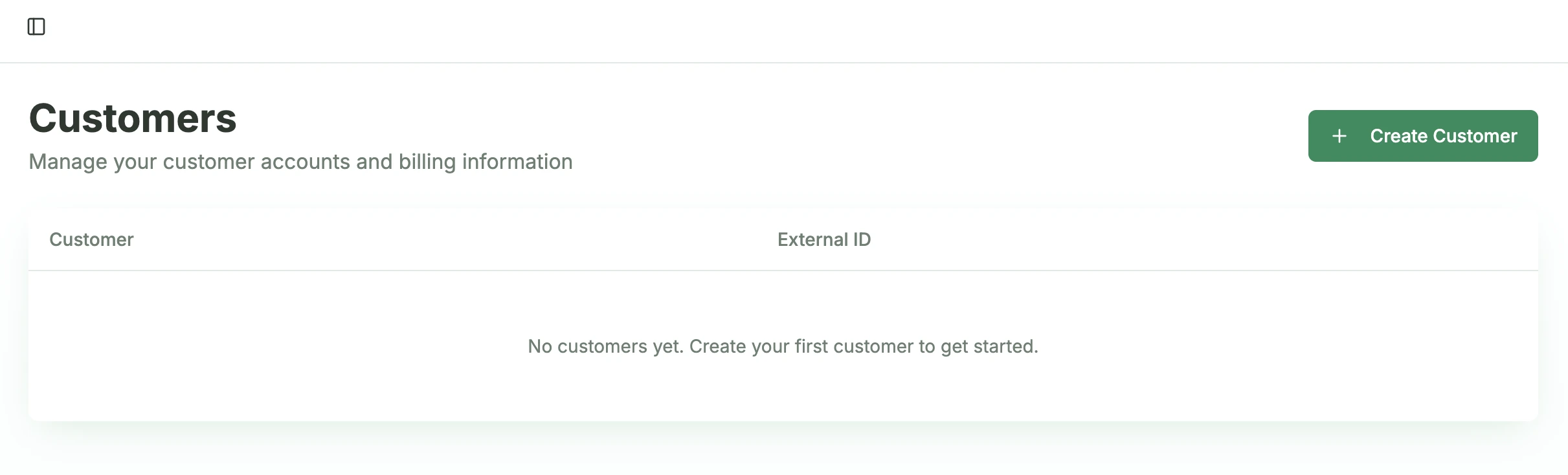
Creating a Customer:
Step 1: Click on "Create Customer"
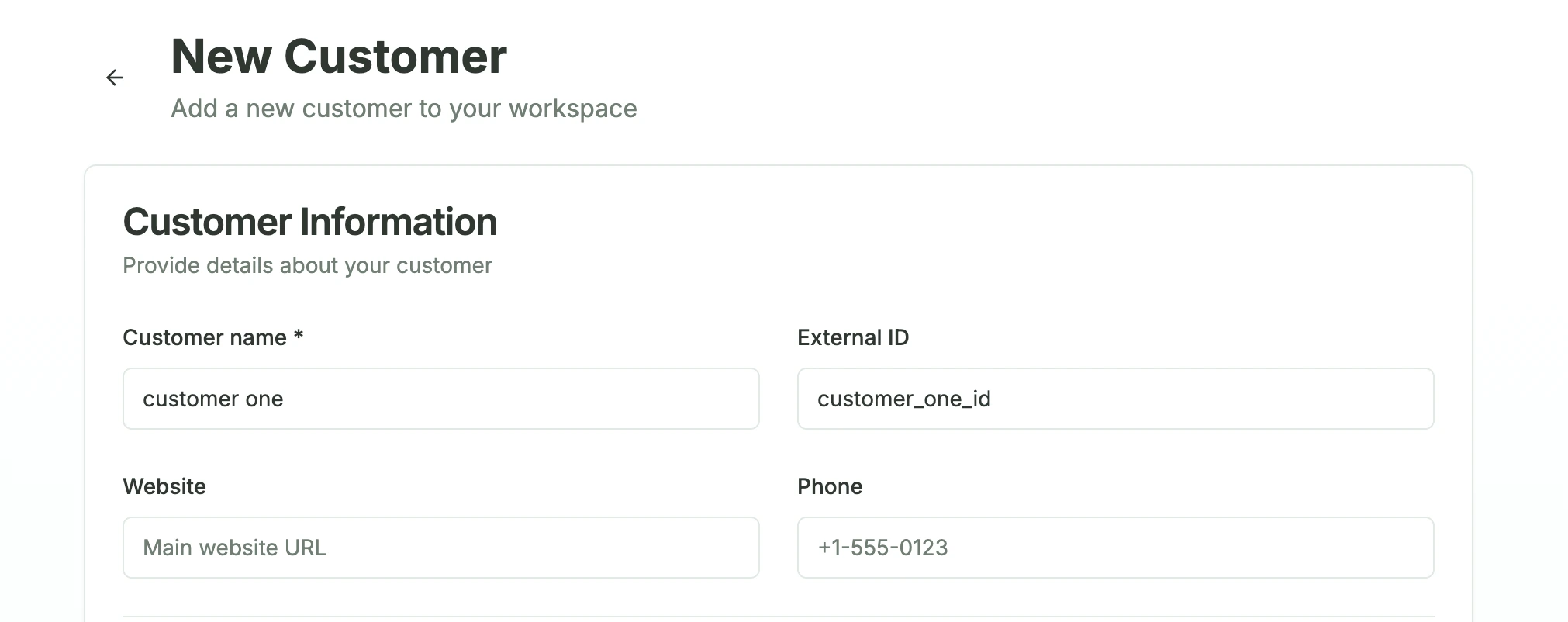
Step 2: Define customer and external ID. Tip: Always use your database customer ID as external ID
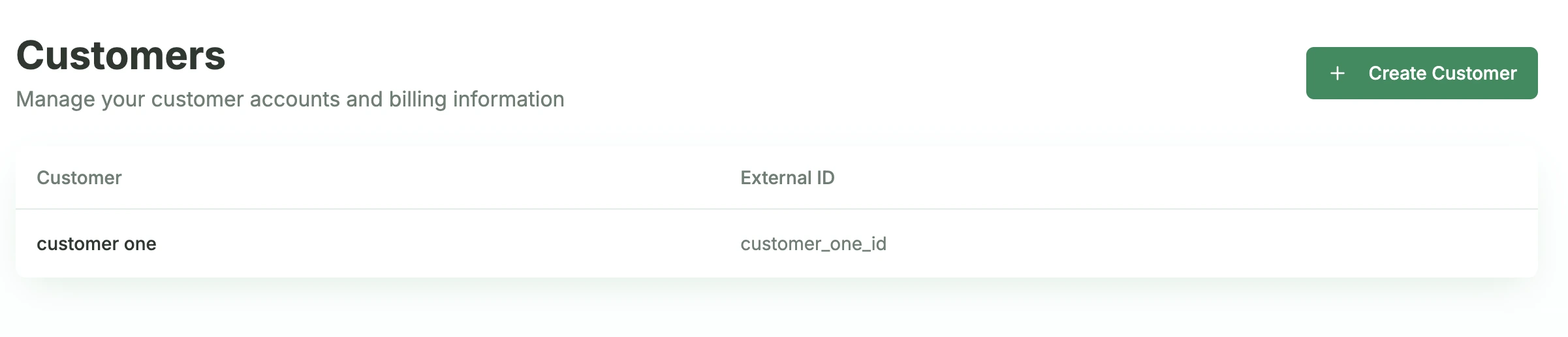
Step 3: Customer is created successfully!
4Send Your First Usage Data
Python Example (Automatic & Recommended)
1import paygent_sdk
2from openai import OpenAI
3
4# 1. Initialize once
5paygent_sdk.init(api_key='your-paygent-api-key')
6
7# 2. Use OpenAI normally
8client = OpenAI(api_key='your-openai-api-key')
9
10# 3. Add tracking IDs to your call
11response = client.chat.completions.create(
12    model='gpt-4o',
13    messages=[{'role': 'user', 'content': 'Hello!'}],
14
15    # Tracking parameters
16    paygent_agent_id='chatbot-agent',
17    paygent_customer_id='customer-123',
18    paygent_indicator='message-sent'
19)
20
21print('Usage tracked automatically!')5Monitor & Bill
View real-time usage data in your dashboard, and Paygent will automatically generate invoices based on actual usage. No manual calculations needed.
That's it!
You've successfully integrated Paygent and tracked your first AI usage. The data is now visible in your dashboard at withpaygent.com.
Next steps: Explore the SDK documentation for your language to learn about automatic tracking, advanced features, and best practices.
Was this page helpful?
Need help? Contact us at support@withpaygent.com